Step-by-Step Guides
Short, clear walkthroughs to help you get the most from VoiceTasks. Tap any guide to expand it.
-
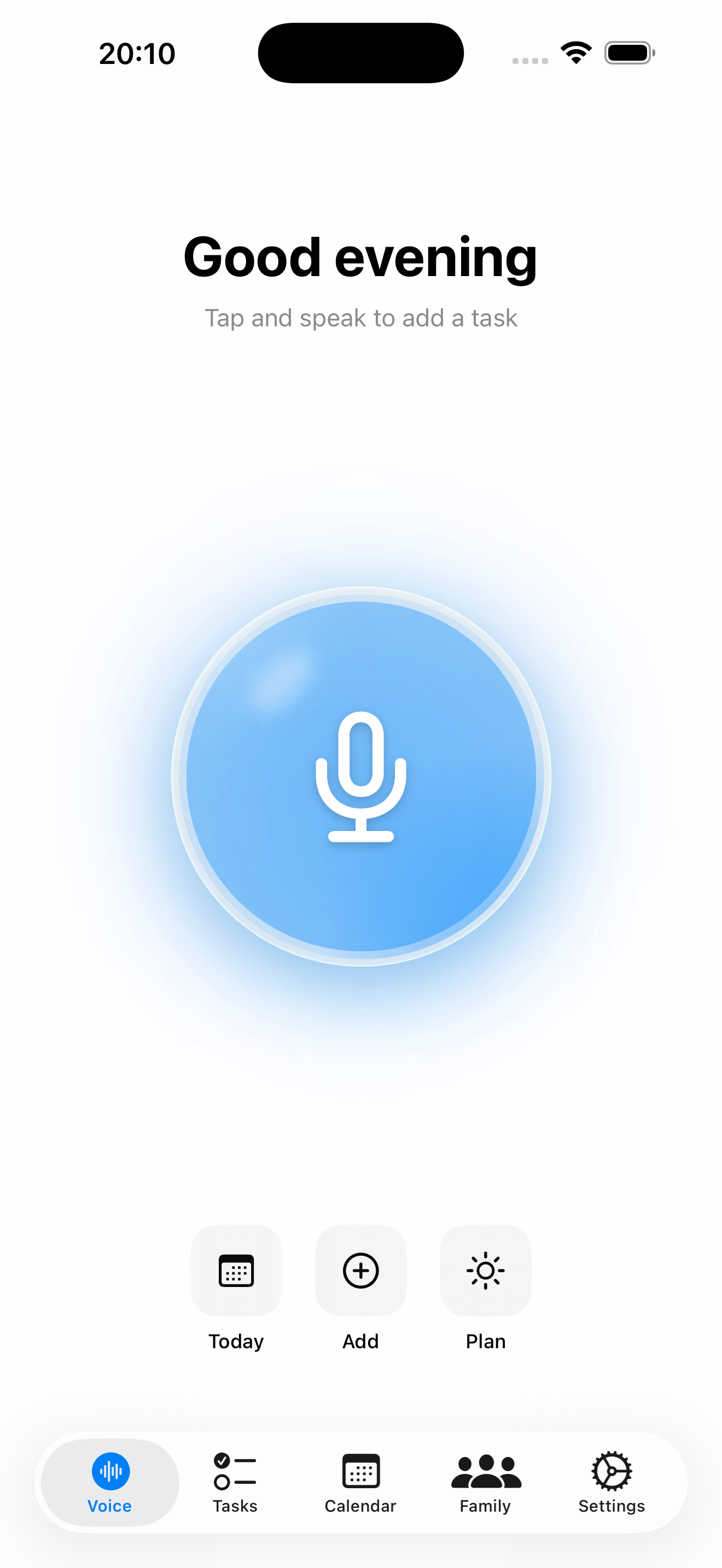
Open VoiceTasks
Launch the app. You will see the main screen with a glowing orb in the centre. This is your voice button.
-
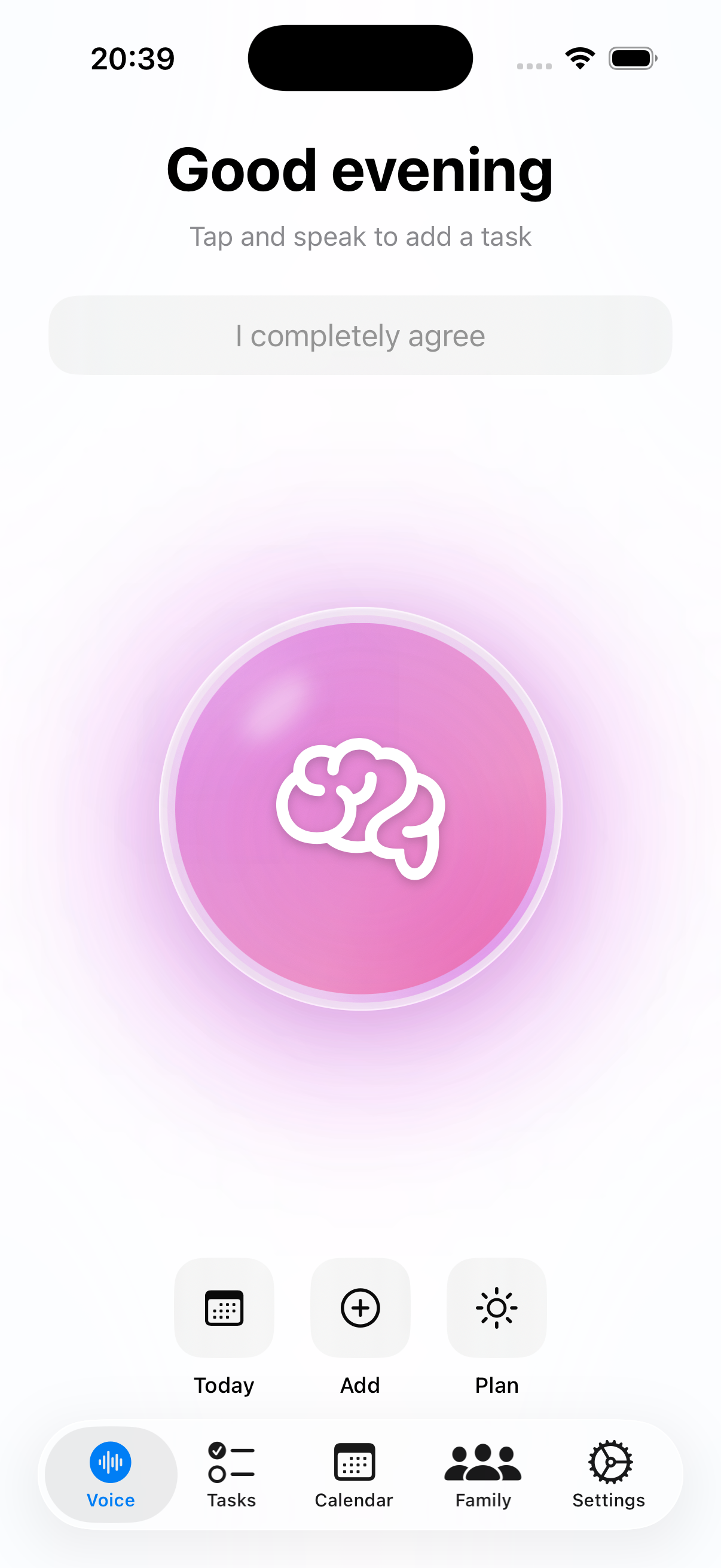
Tap the voice orb
Tap the orb once. It will start pulsing to show it is listening. You will also feel a gentle haptic tap.
-
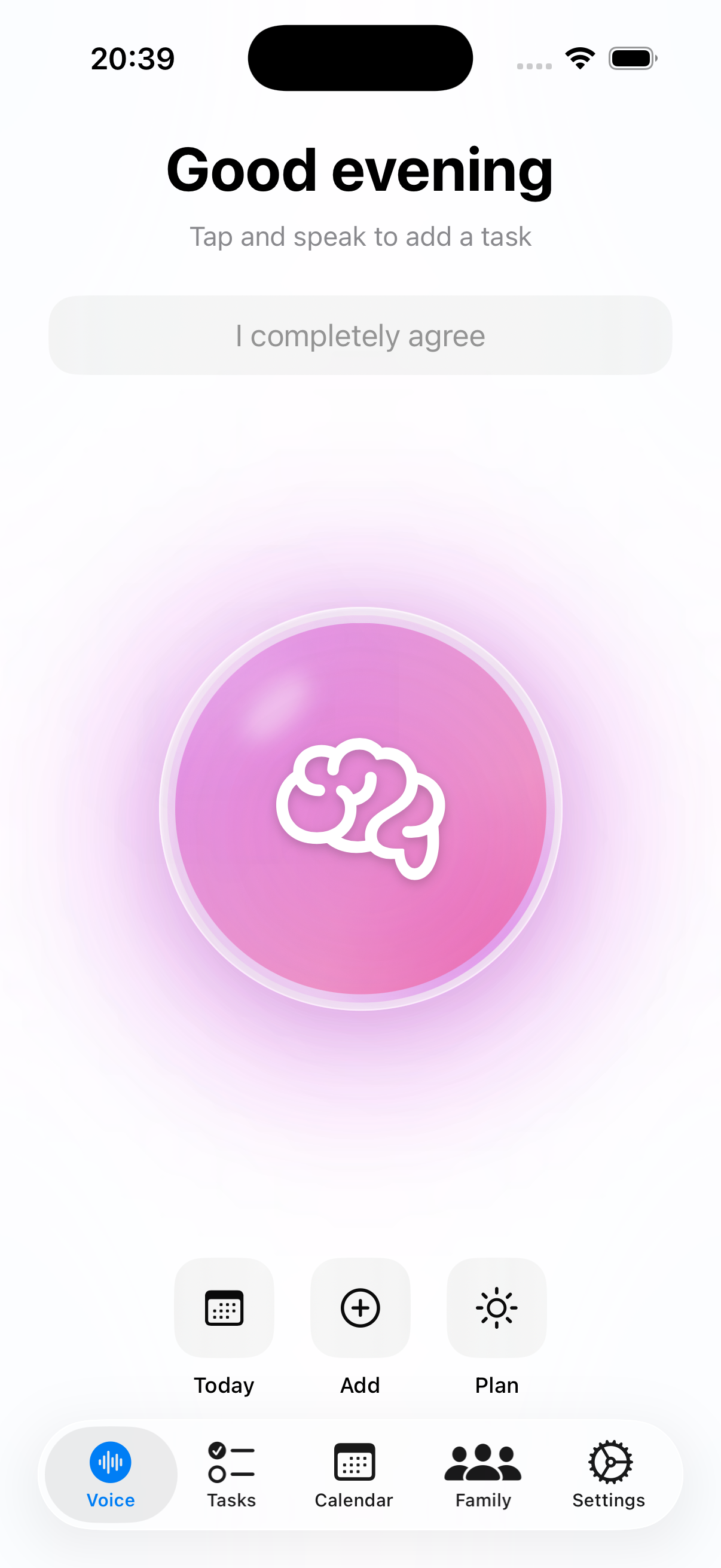
Speak your task
Say your task out loud, naturally. For example:
"Call mom tomorrow at 3pm, it's important"
The app understands dates, times, and priorities from your voice.
-
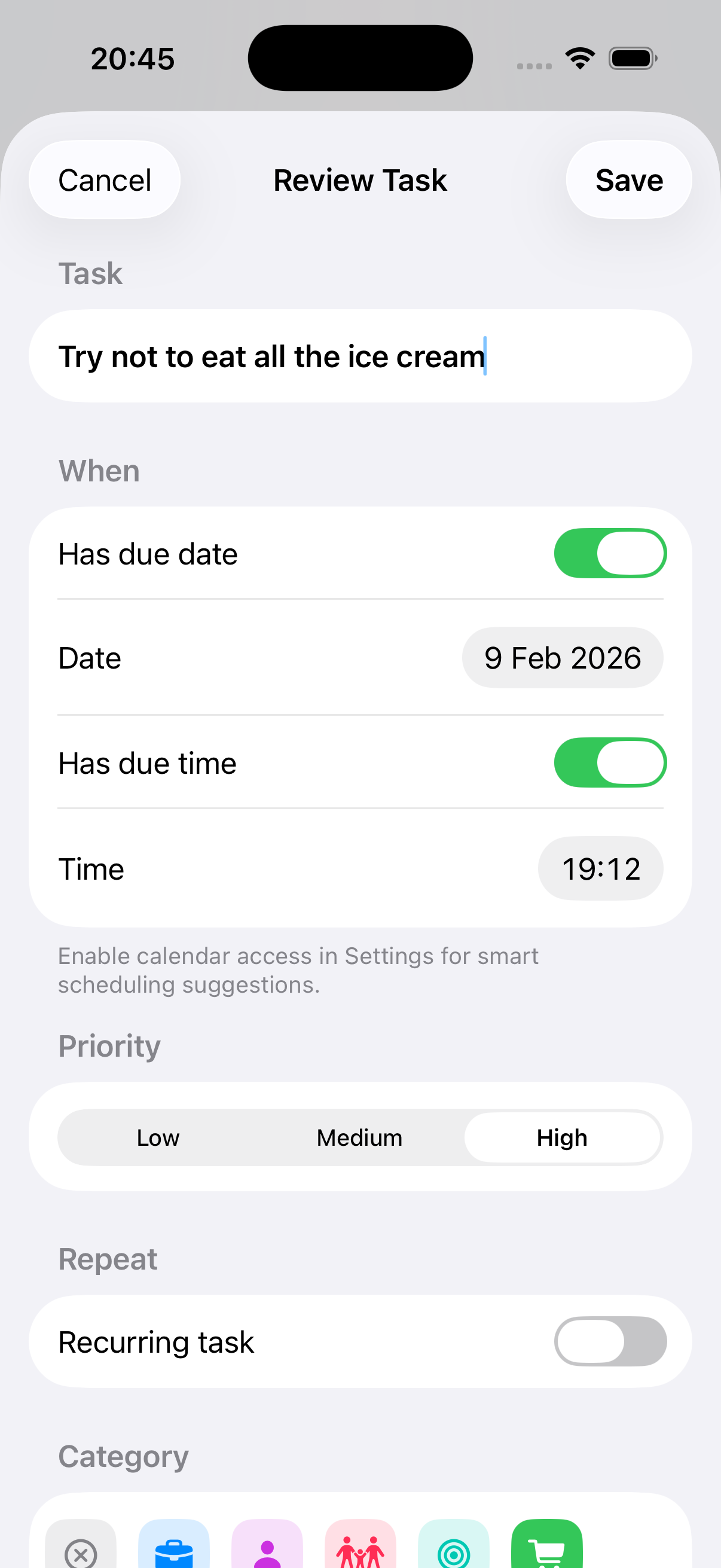
Review the AI extraction
VoiceTasks shows you what it understood. Check the title, date, time, and priority. You can edit anything by tapping on it.
-
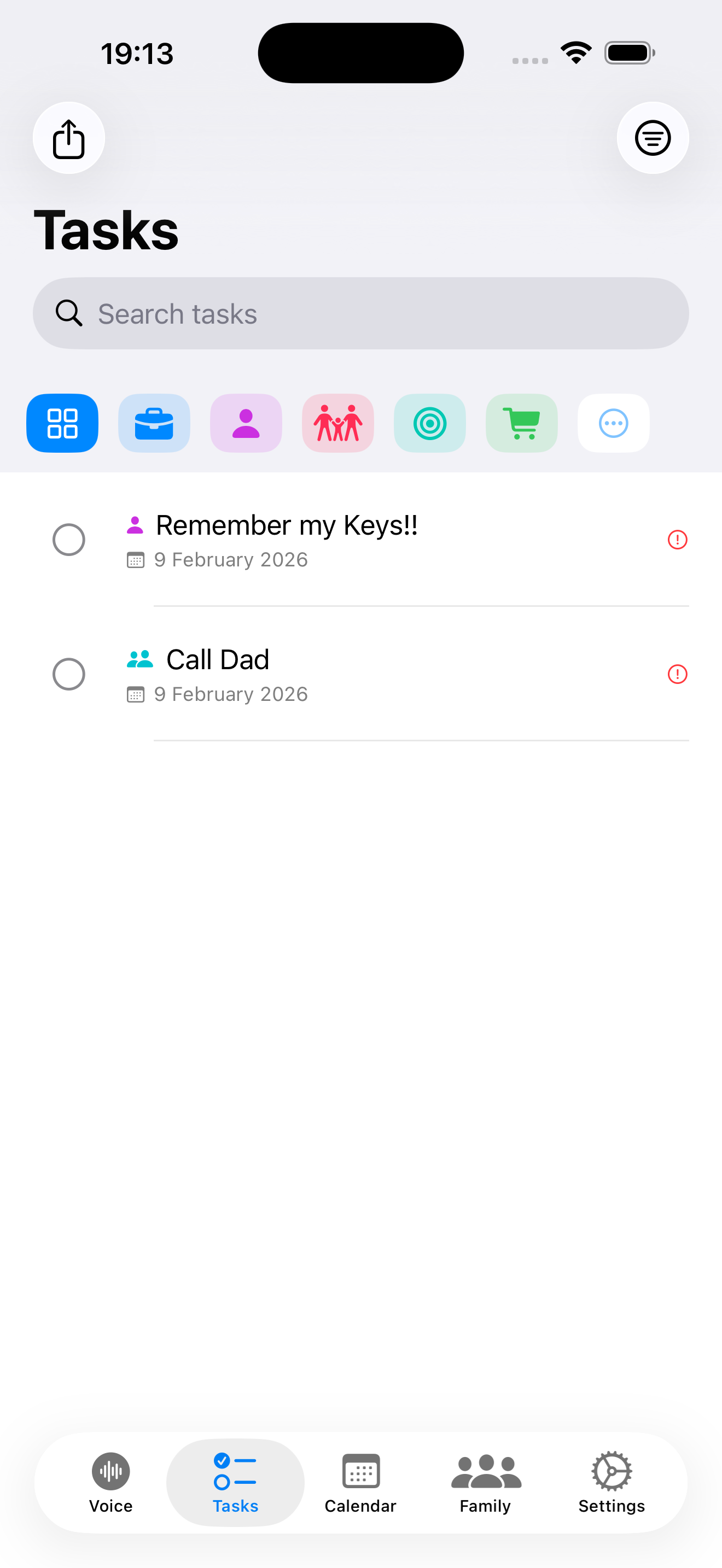
Save your task
Tap Save. Your task appears in the task list. If you have Reminders sync turned on, it also appears in Apple Reminders.
Tip: You do not need to speak perfectly. VoiceTasks uses Apple Intelligence to understand natural speech, even if you pause or change your mind mid-sentence.
VoiceTasks can read your tasks back to you. The default voice is robotic. Download a better voice for a much nicer experience.
-
Open iPhone Settings
Go to your iPhone home screen and tap the grey gear icon (Settings).
-
Go to Accessibility
Scroll down and tap Accessibility. It has a blue icon with a person inside a circle.
-
Tap Spoken Content
Under the Vision section, tap Spoken Content.
-
Tap Voices
Tap Voices. You will see a list of languages.
-
Choose your language
Tap English (or your preferred language). You will see a list of available voices.
-
Download a Premium or Enhanced voice
Look for voices labelled Premium (best quality, 150-300 MB) or Enhanced (good quality, 50-150 MB). Tap one to preview it. Tap the download arrow to install.
Wait for the download to finish. This may take a minute or two on Wi-Fi.
-
Return to VoiceTasks
Open VoiceTasks again. The app automatically detects and uses the best voice available. No extra setup needed.
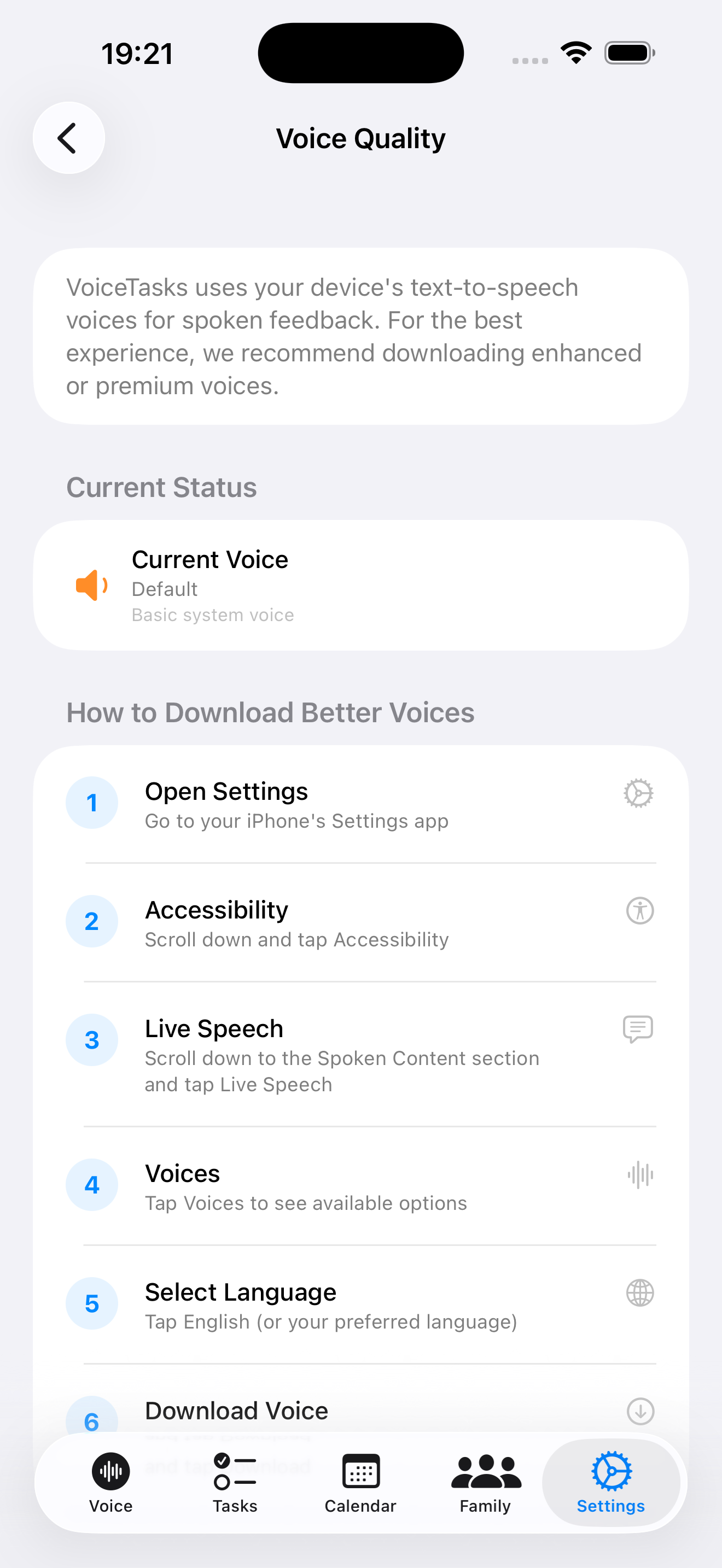
Tip: Premium voices sound remarkably natural. If you use voice confirmation a lot, the download is worth it. You can also check voice quality inside VoiceTasks at Settings > Voice Quality.
With the Family plan, everyone in your household can use VoiceTasks. Here is how to set it up.
-
Open iPhone Settings
Tap the grey gear icon (Settings) on your iPhone home screen.
-
Tap your name
At the very top of Settings, tap your name and photo. This opens your Apple Account page.
-
Tap Family Sharing
Tap Family Sharing. If you have not set it up before, tap Set Up Family and follow the on-screen steps.
-
Add family members
Tap Add Member. You can invite people by name, email, or in person. Each person needs their own Apple Account.
-
Turn on Purchase Sharing
Make sure Purchase Sharing is enabled in Family Sharing settings. This lets your family members use your VoiceTasks subscription.
-
Create a shared Reminders list
Open the Reminders app. Create a new list (for example, "Family Tasks"). Tap the share button and invite your family members. Tasks on this list are visible to everyone.
-
Open the Family tab in VoiceTasks
In VoiceTasks, tap the Family tab at the bottom. You will see shared tasks and a family calendar view.
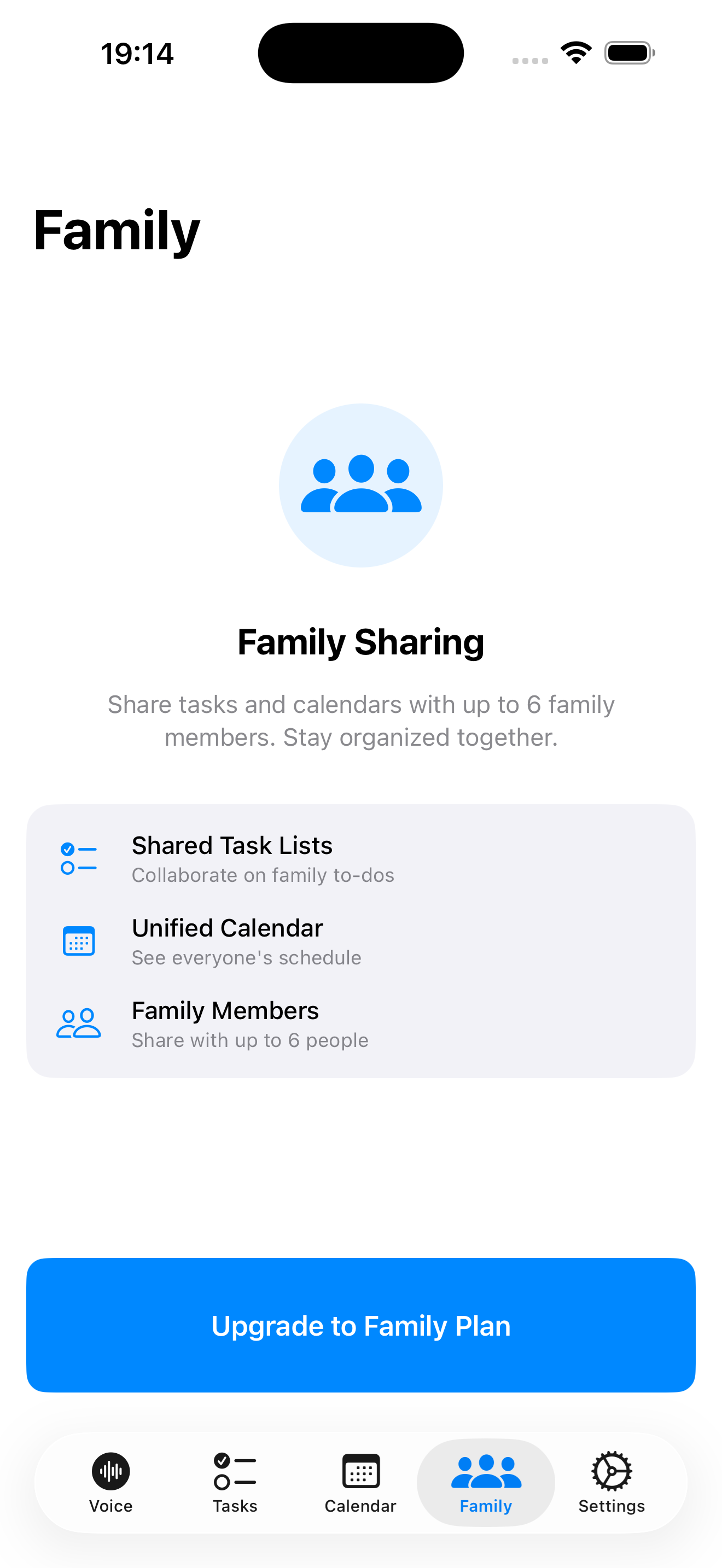
Tip: Each family member gets their own VoiceTasks account with all Premium features. They do not see your personal tasks unless you share a Reminders list with them.
VoiceTasks shows your calendar events alongside your tasks. This helps you plan your day without switching between apps.
-
Grant calendar permission
When VoiceTasks asks for calendar access (during onboarding or in Settings), tap Allow. This lets the app read your calendar events.
VoiceTasks can only read your calendar. It never creates or changes events.
-
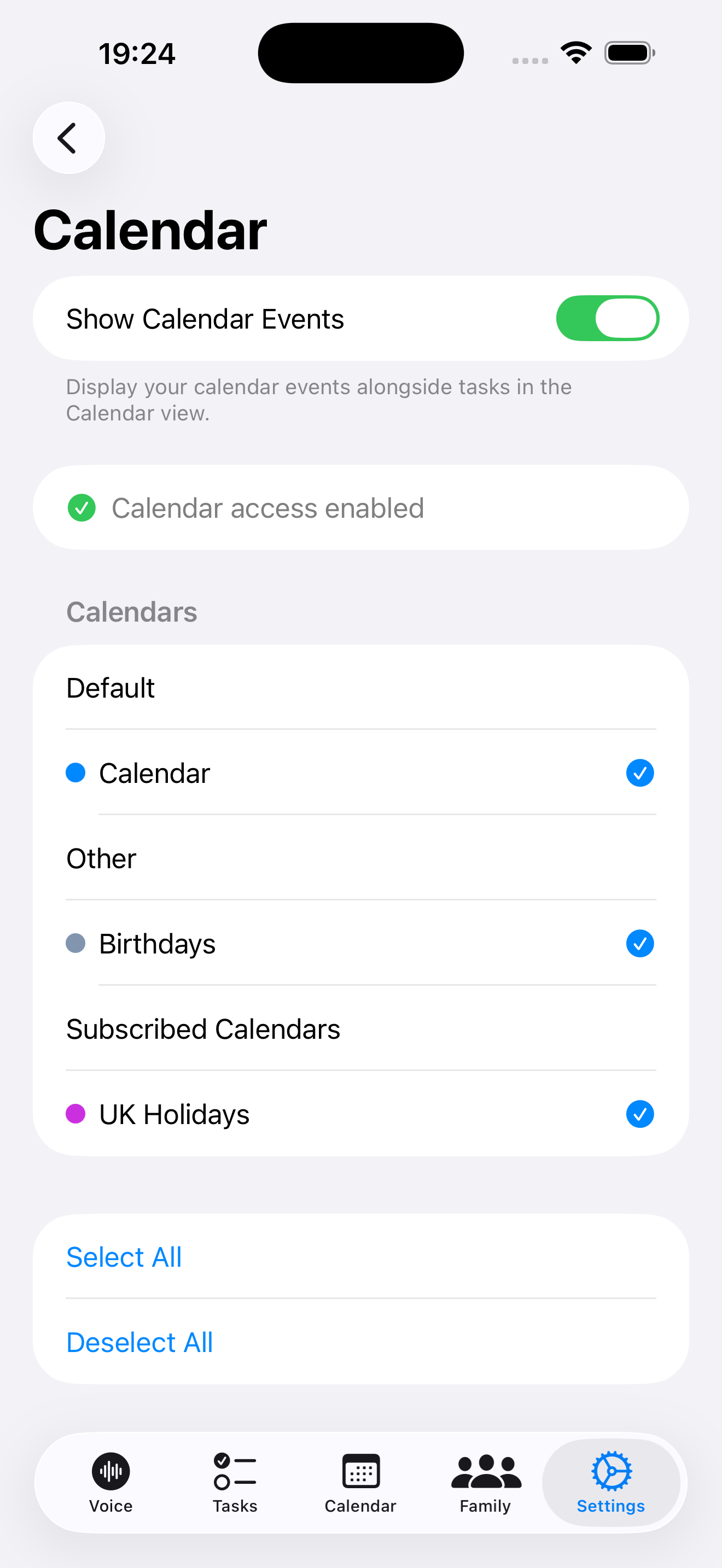
Choose which calendars to show
Go to VoiceTasks Settings > Calendars. You will see all your calendars listed (Work, Personal, Birthdays, Holidays, etc.). Toggle each one on or off.
-
Open the Calendar tab
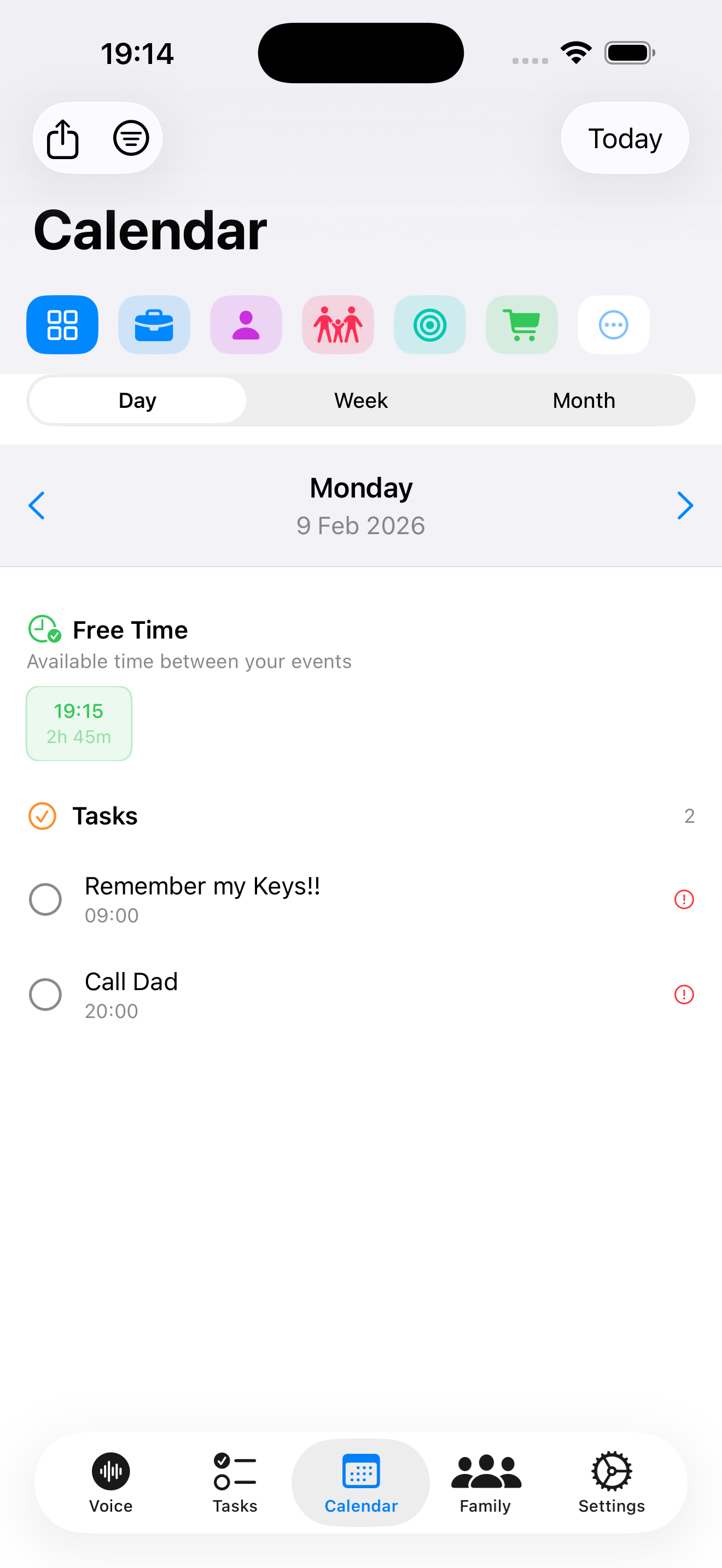
Tap the Calendar tab at the bottom of VoiceTasks. You will see a month view with coloured dots showing days that have events.
-
Tap a day to see details
Tap any day to see your events and tasks for that day. Events show their time and calendar colour. Tasks show their priority.
-
Find free time
VoiceTasks highlights free time slots in your day. Tap a free slot to schedule a task during that time. This is especially helpful for planning around meetings.
Tip: Use the "Read My Day" button at the top of the calendar to hear your schedule spoken aloud. Great for getting a quick overview without reading.
VoiceTasks is built from the ground up for ADHD and dyslexic users. Here is how to turn on the features that help you most.
-
Open VoiceTasks Settings
Tap the Settings tab at the bottom of the app (the gear icon).
-
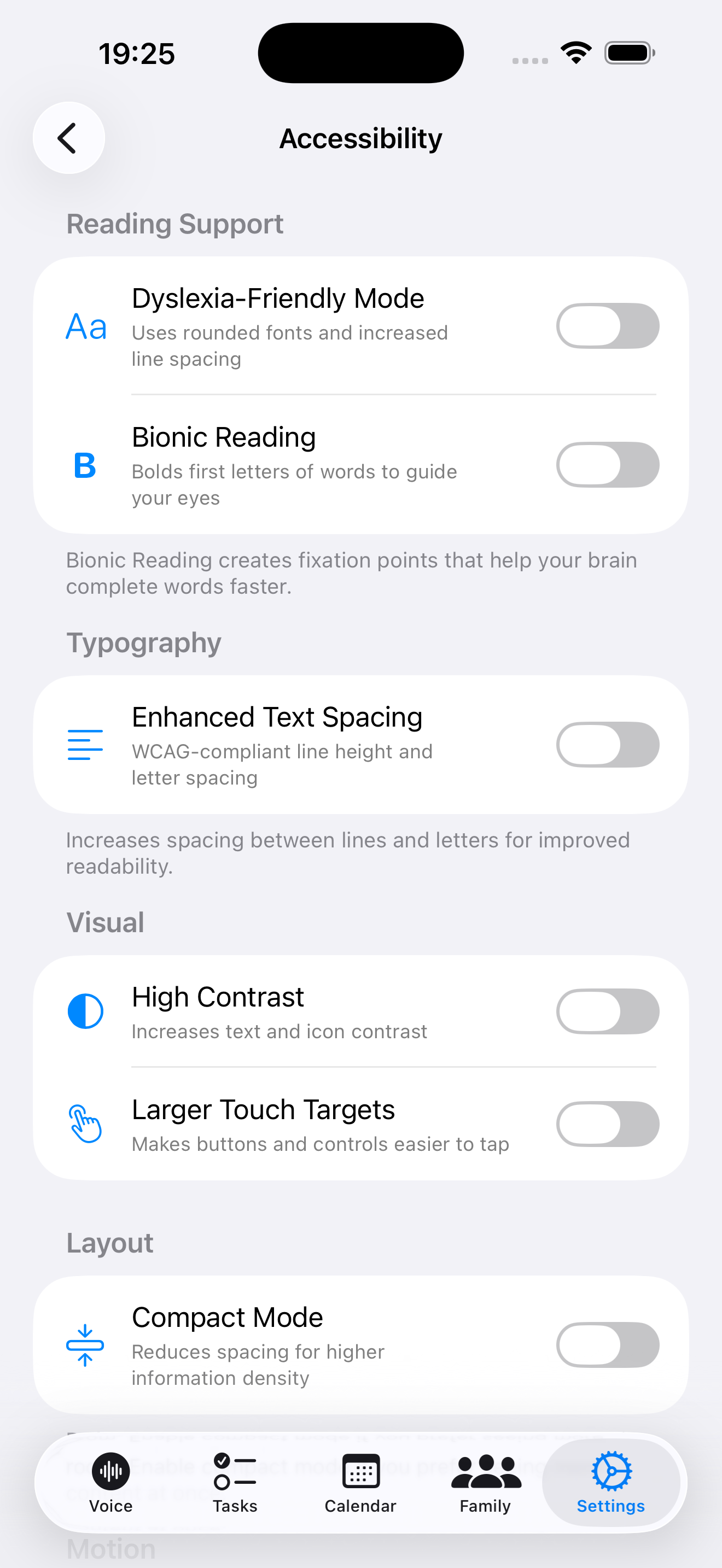
Tap Accessibility
Tap Accessibility to see all available options.
-
Dyslexia-friendly fonts
Toggle on Dyslexia-Friendly Font. This switches to a rounded font with better letter spacing. Letters like b, d, p, and q are easier to tell apart.
-
High contrast mode
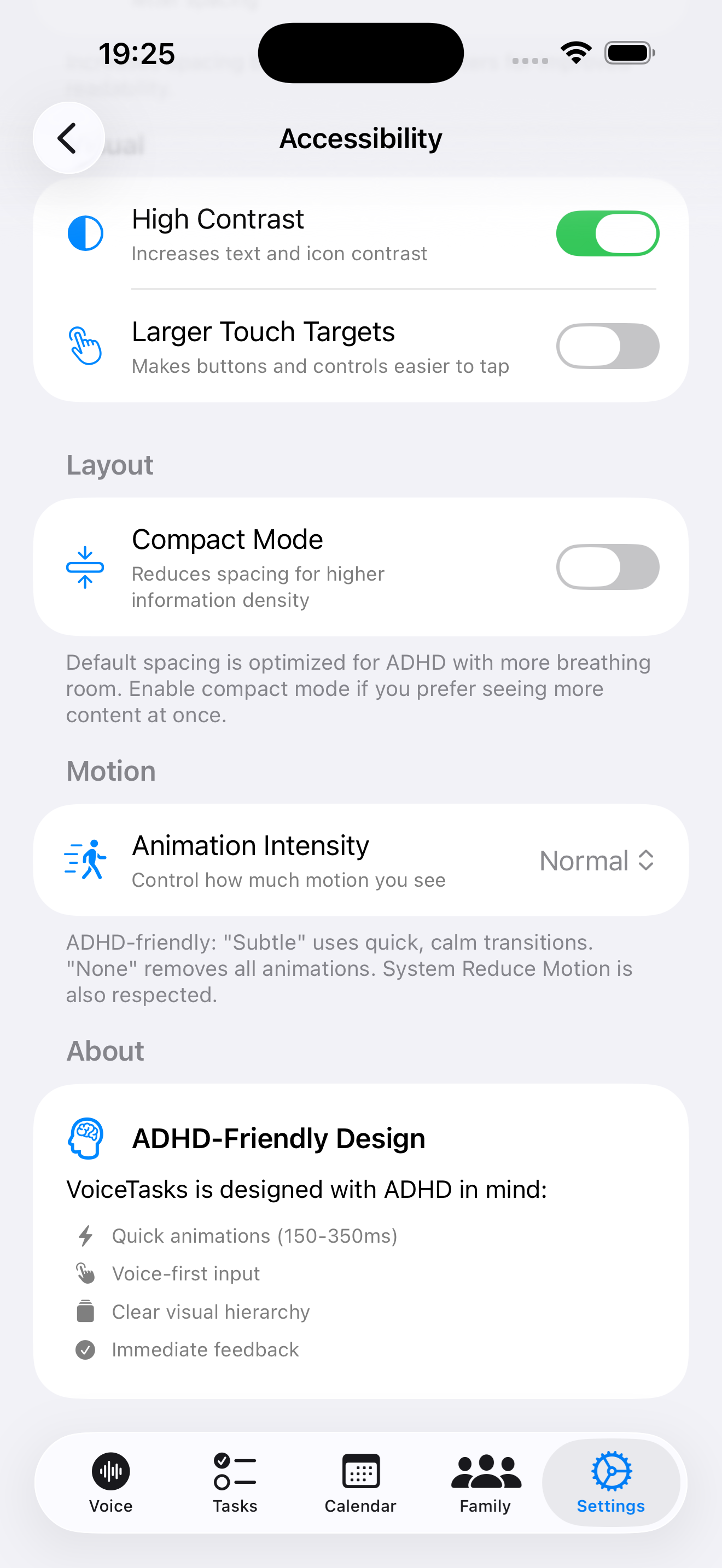
Toggle on High Contrast. Text becomes bolder and colours are stronger. This makes everything easier to read, especially in bright light.
-
Larger touch targets
Toggle on Larger Touch Targets. Buttons and tappable areas become bigger. This helps if you find yourself tapping the wrong thing.
-
Bionic reading
Toggle on Bionic Reading. The first few letters of each word are bolded. This helps your eyes jump from word to word more quickly.
-
Voice confirmation
Toggle on Voice Confirmation. After you save a task, VoiceTasks reads it back to you. You can confirm without needing to read the screen.
Tip: VoiceTasks also respects your iPhone system settings. If you have Reduce Motion or Bold Text turned on in iPhone Settings > Accessibility, VoiceTasks follows those automatically.